
STEP 1: CREATE A DSJ EXCHANGE ACCOUNT
STEP 2: FUND YOUR ACCOUNT
STEP 3: SET UP BONCHAT
Set Up Your Bonchat Account
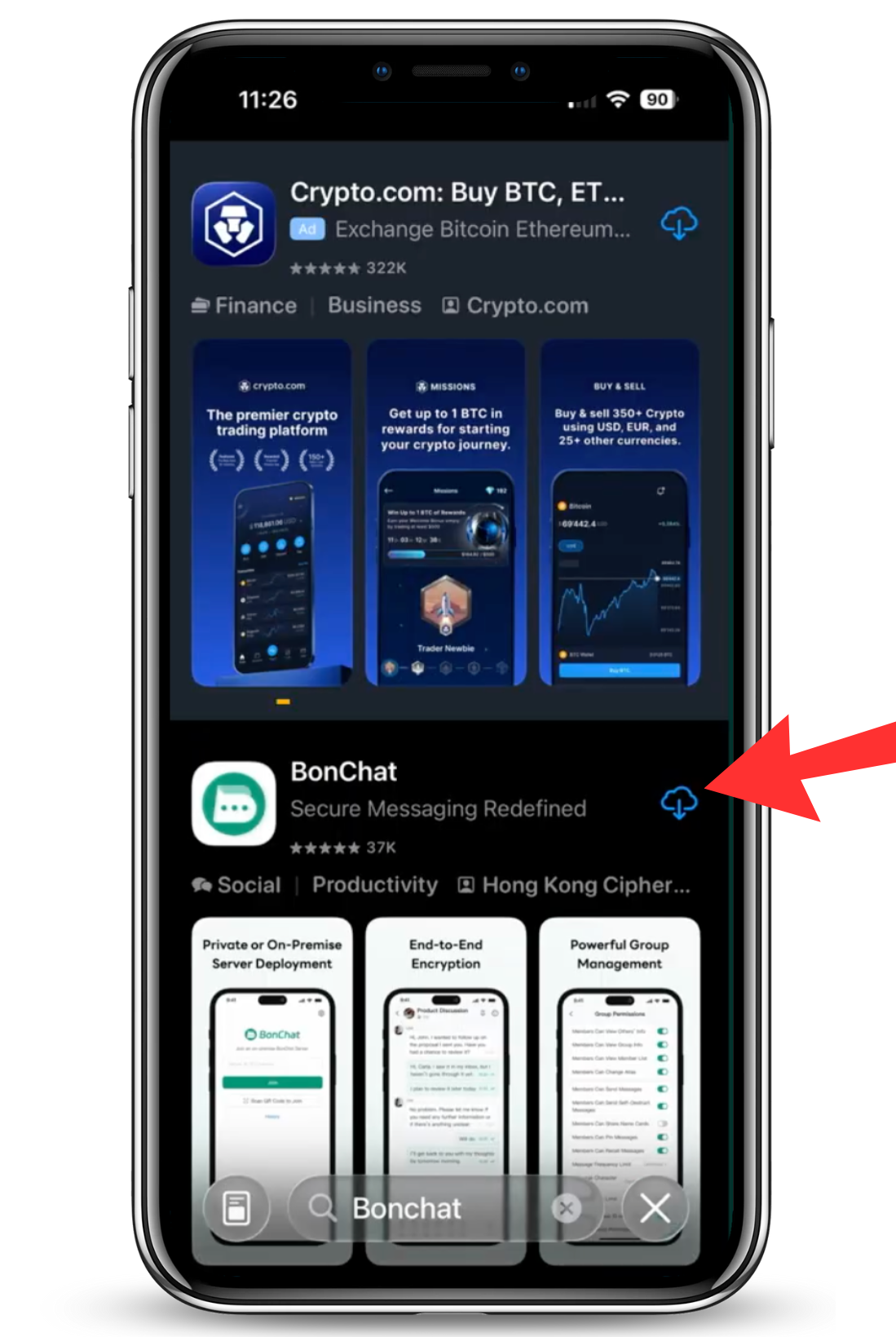
Step 1: Download the BonChat App
Download the BonChat app from the Google Play Store or Apple App Store.

Apple App Store - https://apps.apple.com/us/app/bonchat/id6701998686
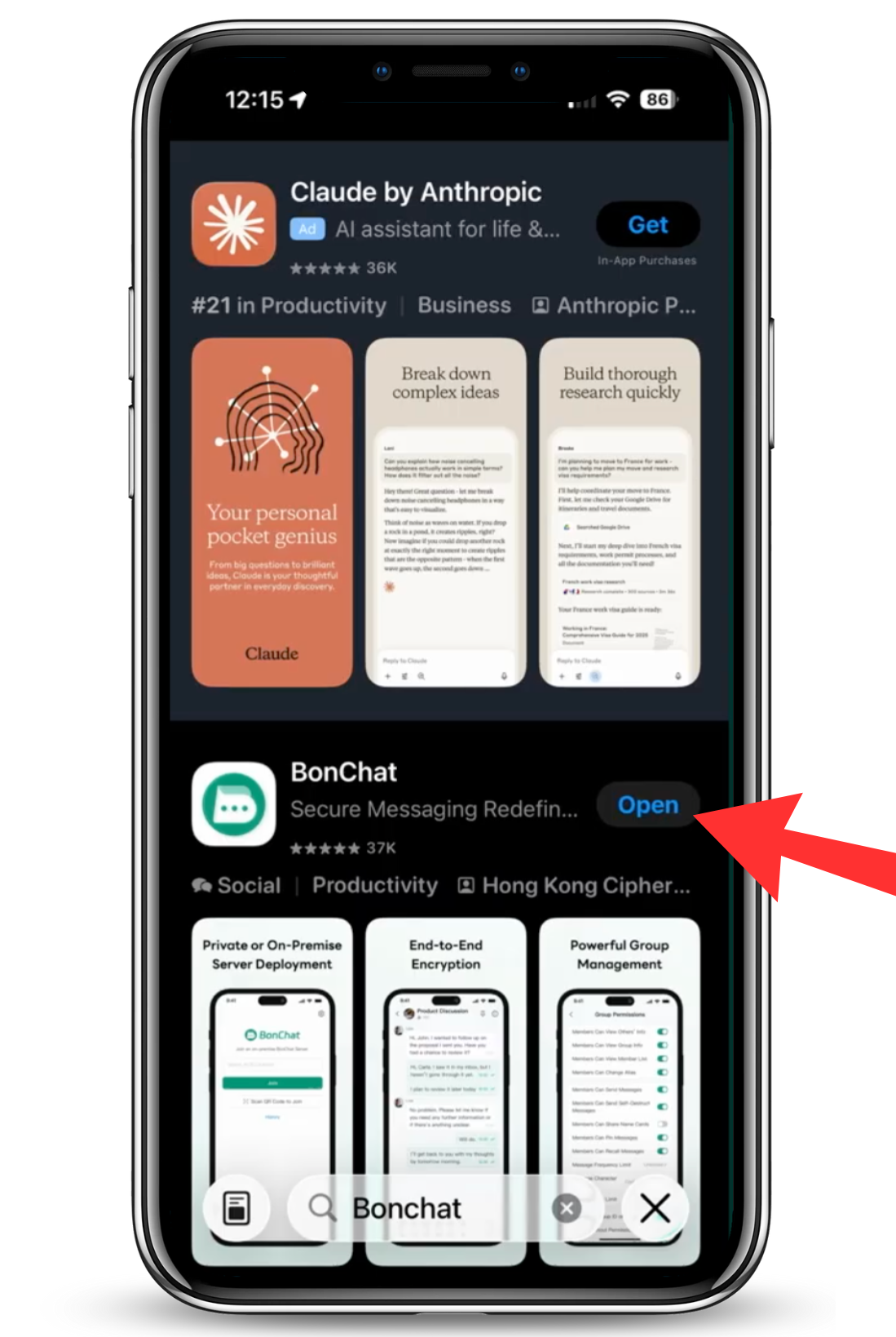
Step 2: Open BonChat
Before opening the app, you must have a server code for your region.
That code is . You'll need this later.
Now, open the BonChat app.
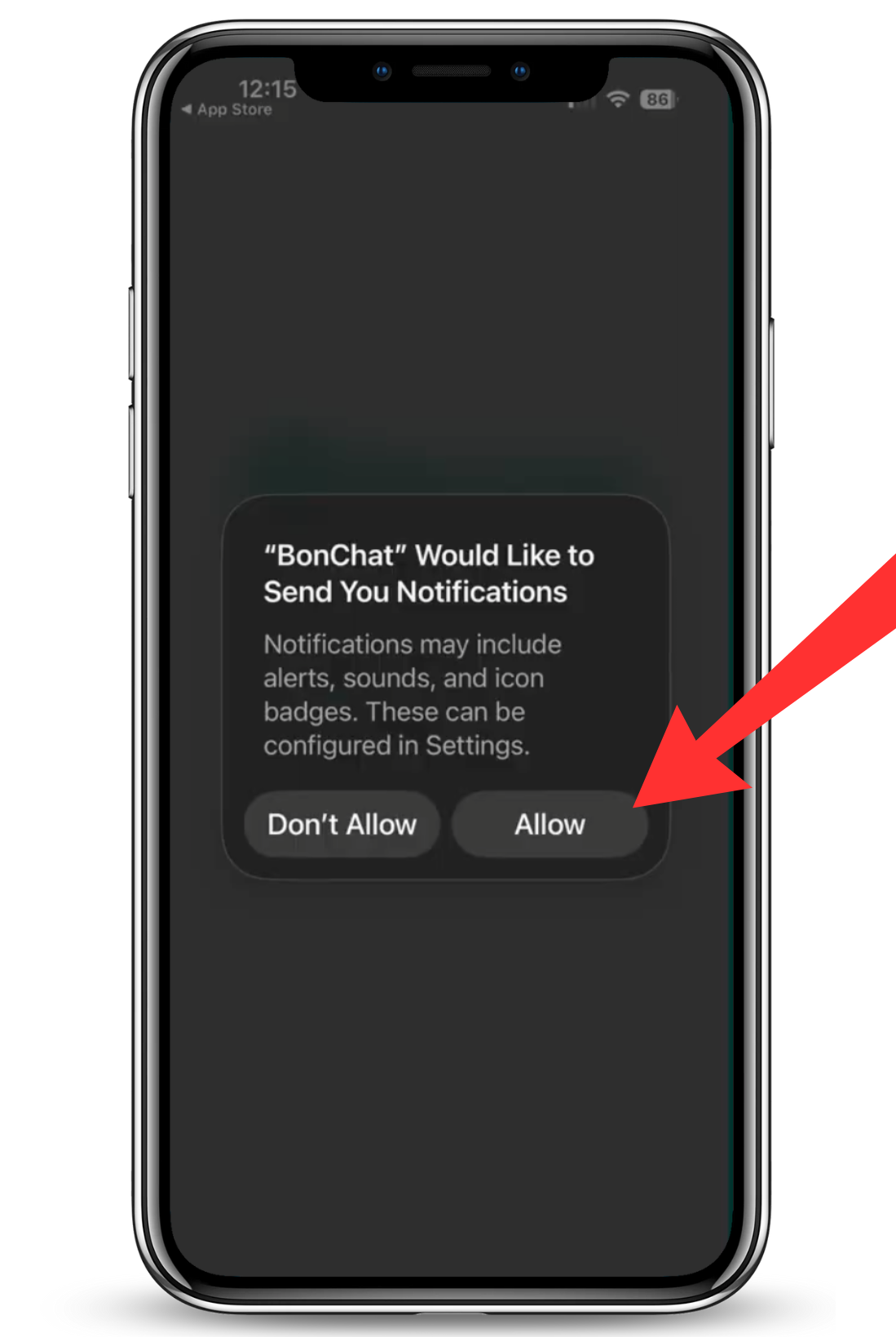
Click the Allow button.
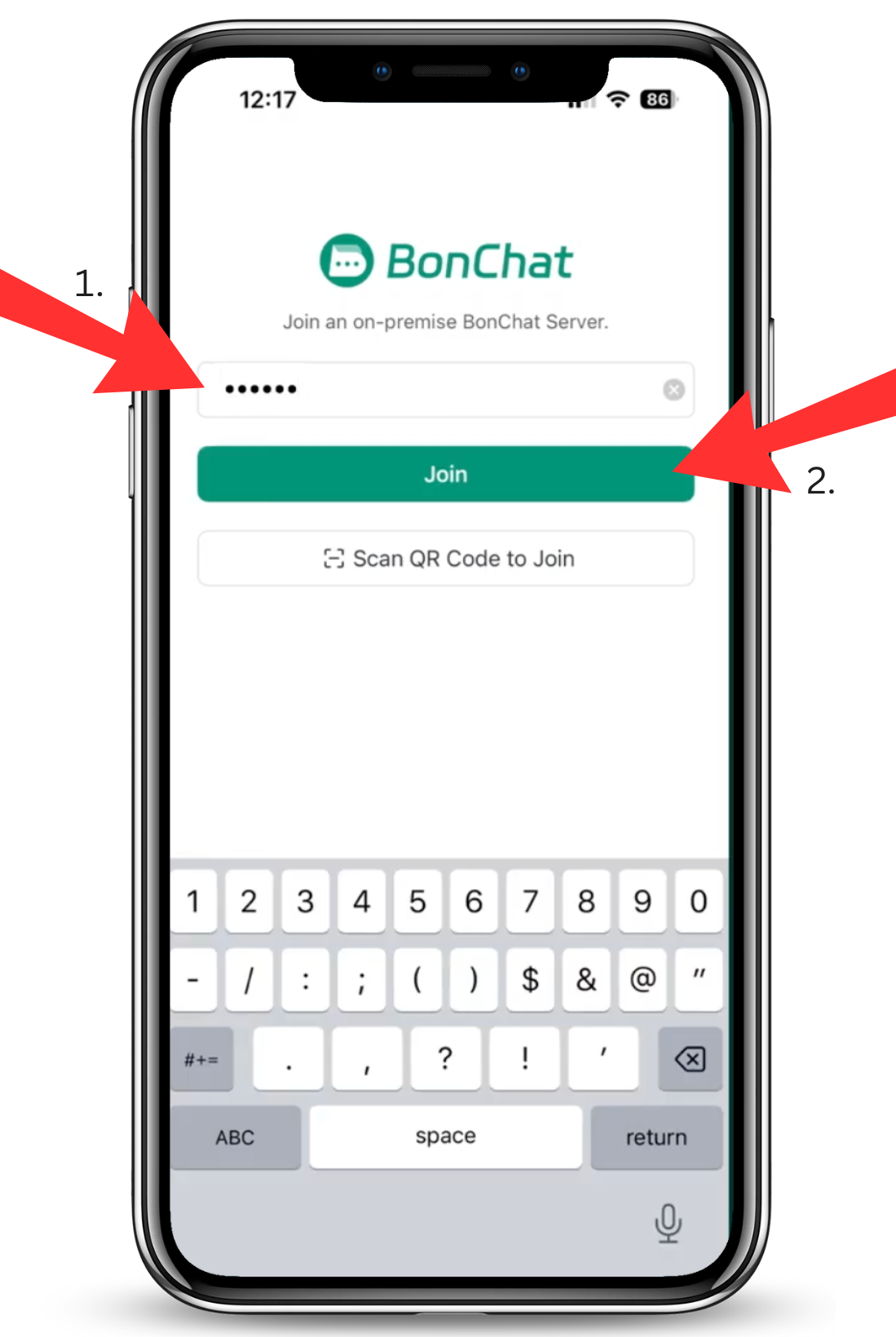
Step 4: Enter the Secure Code
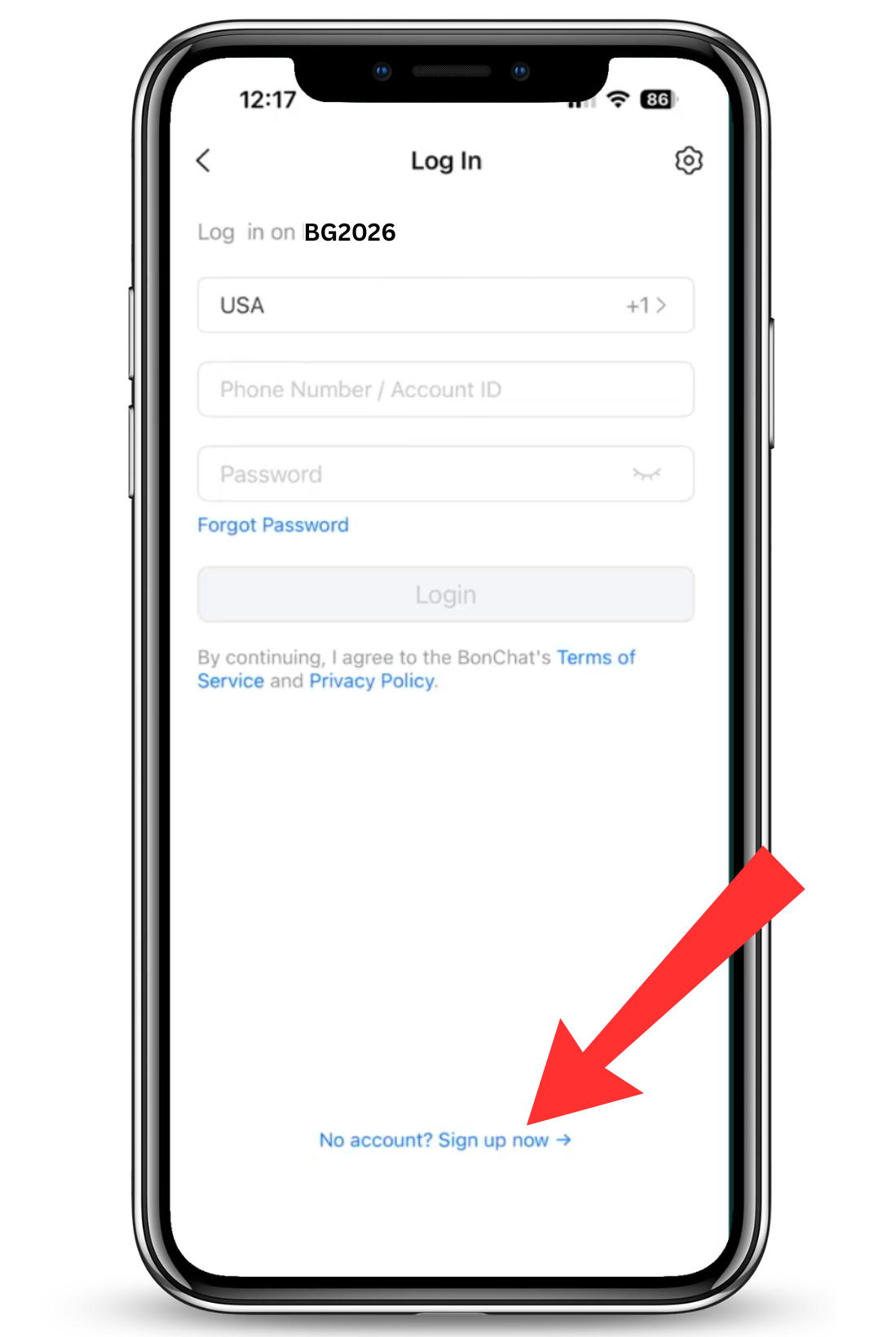
Step 5: Create Account
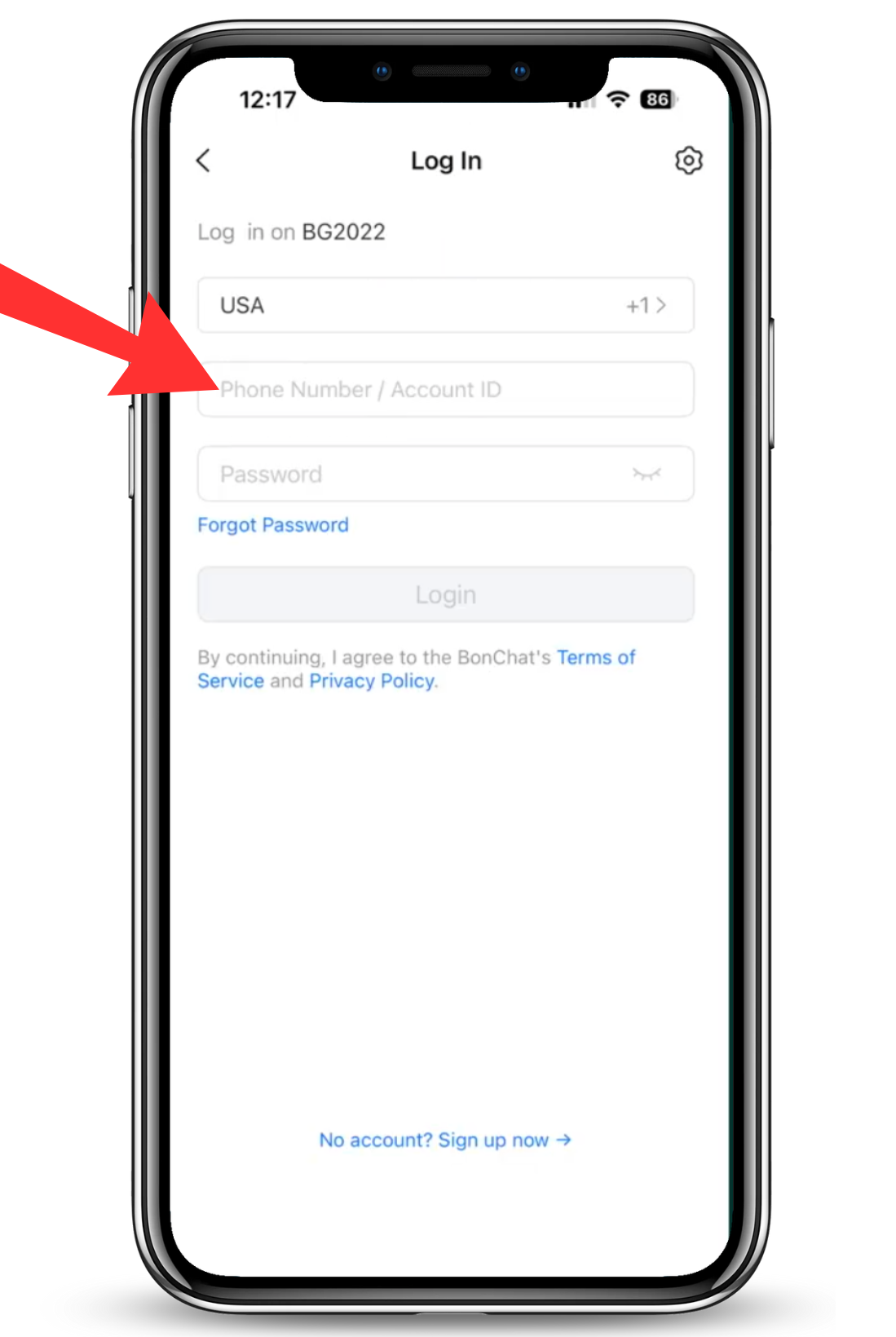
Step 6: Enter Phone Number
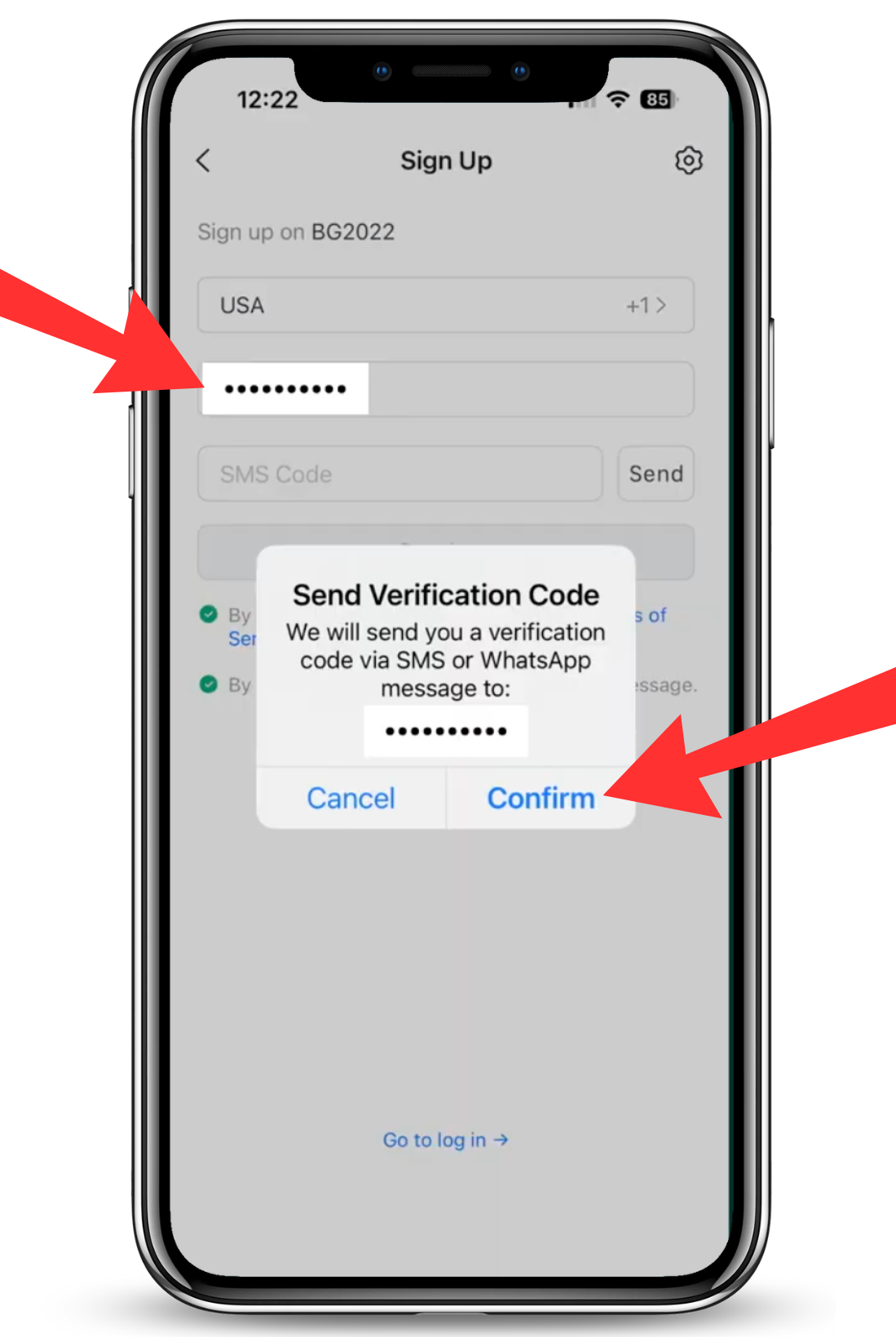
Step 7: Click Confirm
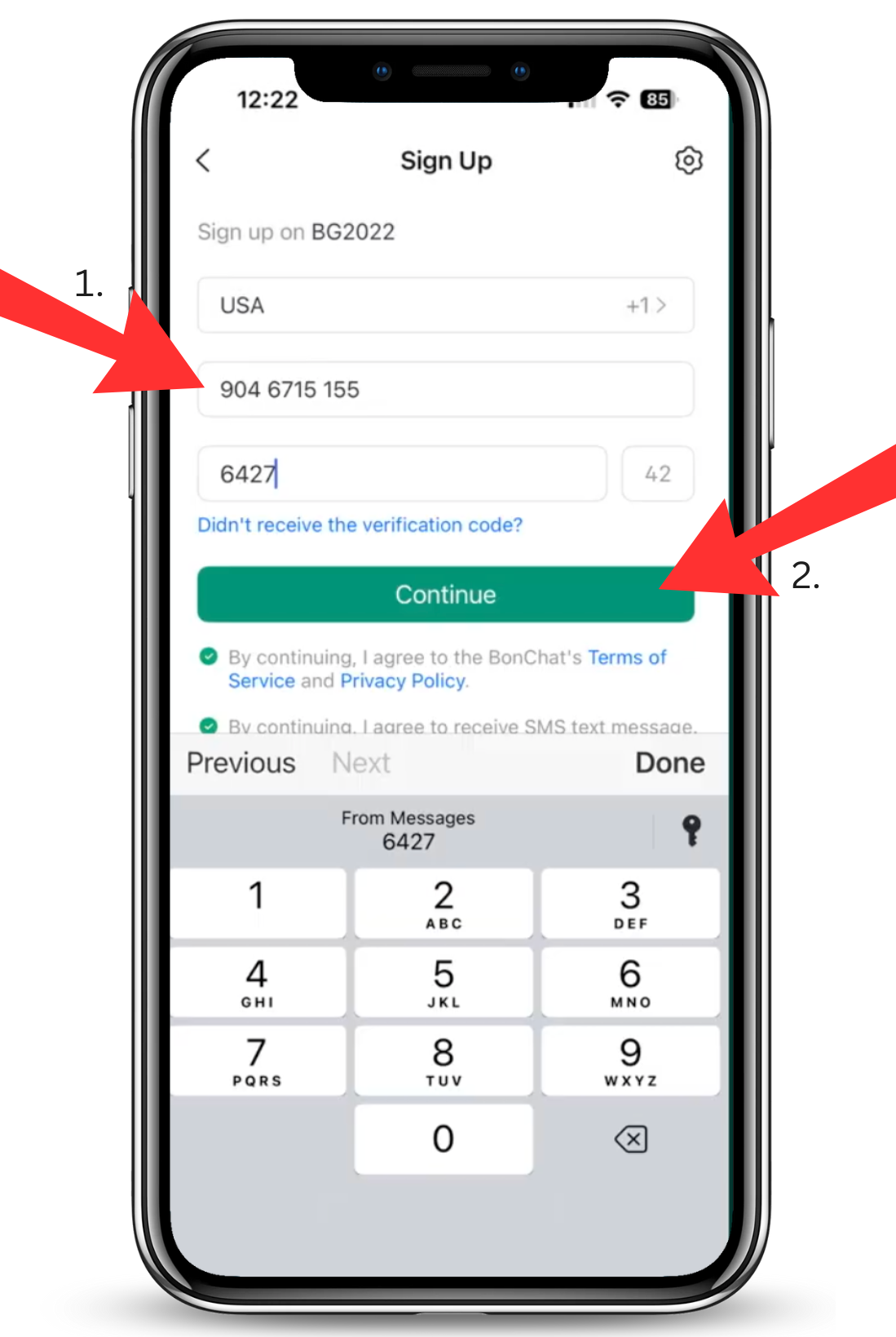
Step 8: Enter Verification Code
Enter the verification code in the field under your phone number. Then click Continue.
If you do not receive the code, click Didn't receive the verification code? and BonChat will send you a new code.
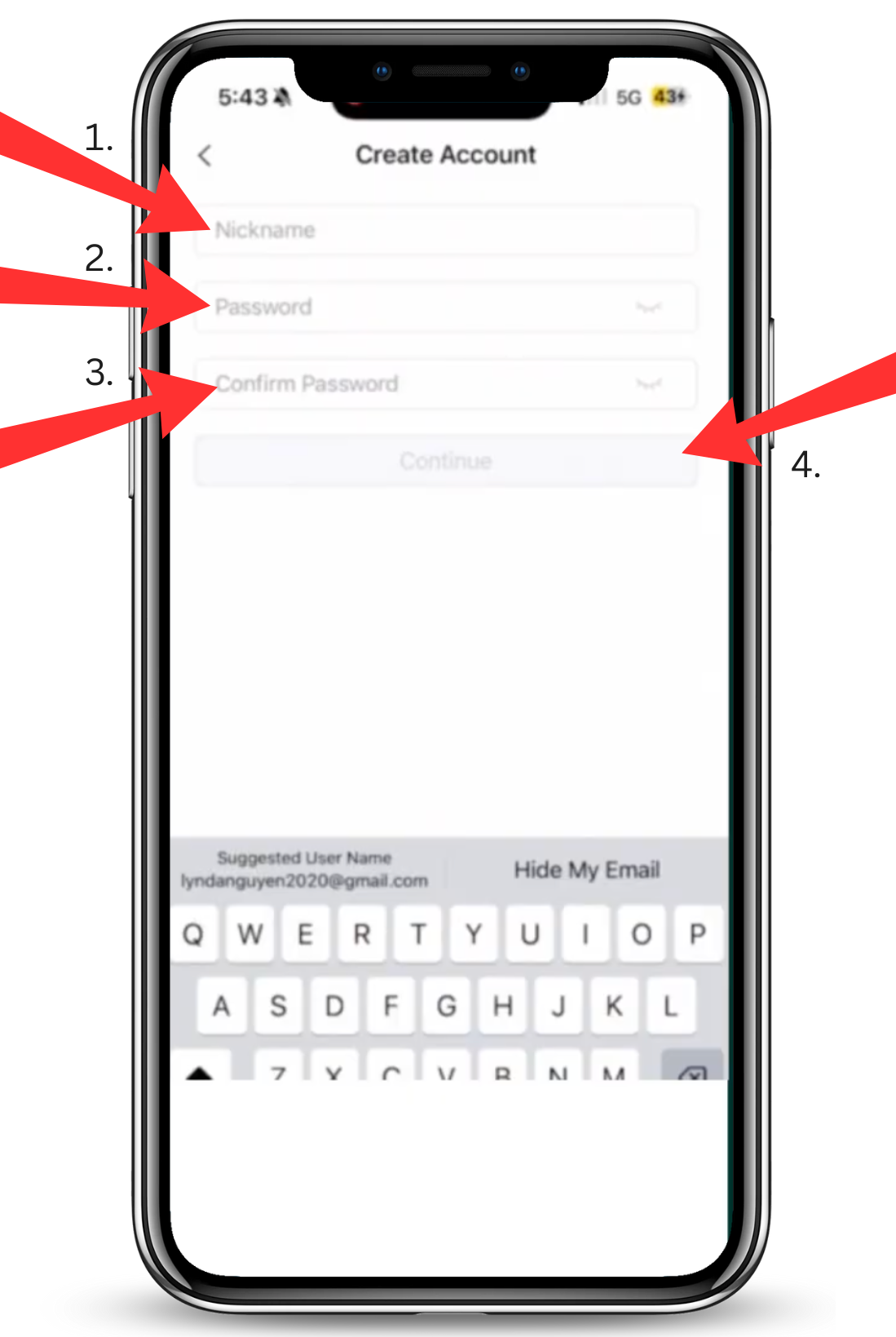
Step 9: Create Your Account
Create a screen name and password for your BonChat account. Enter your password again to confirm it and click Continue.
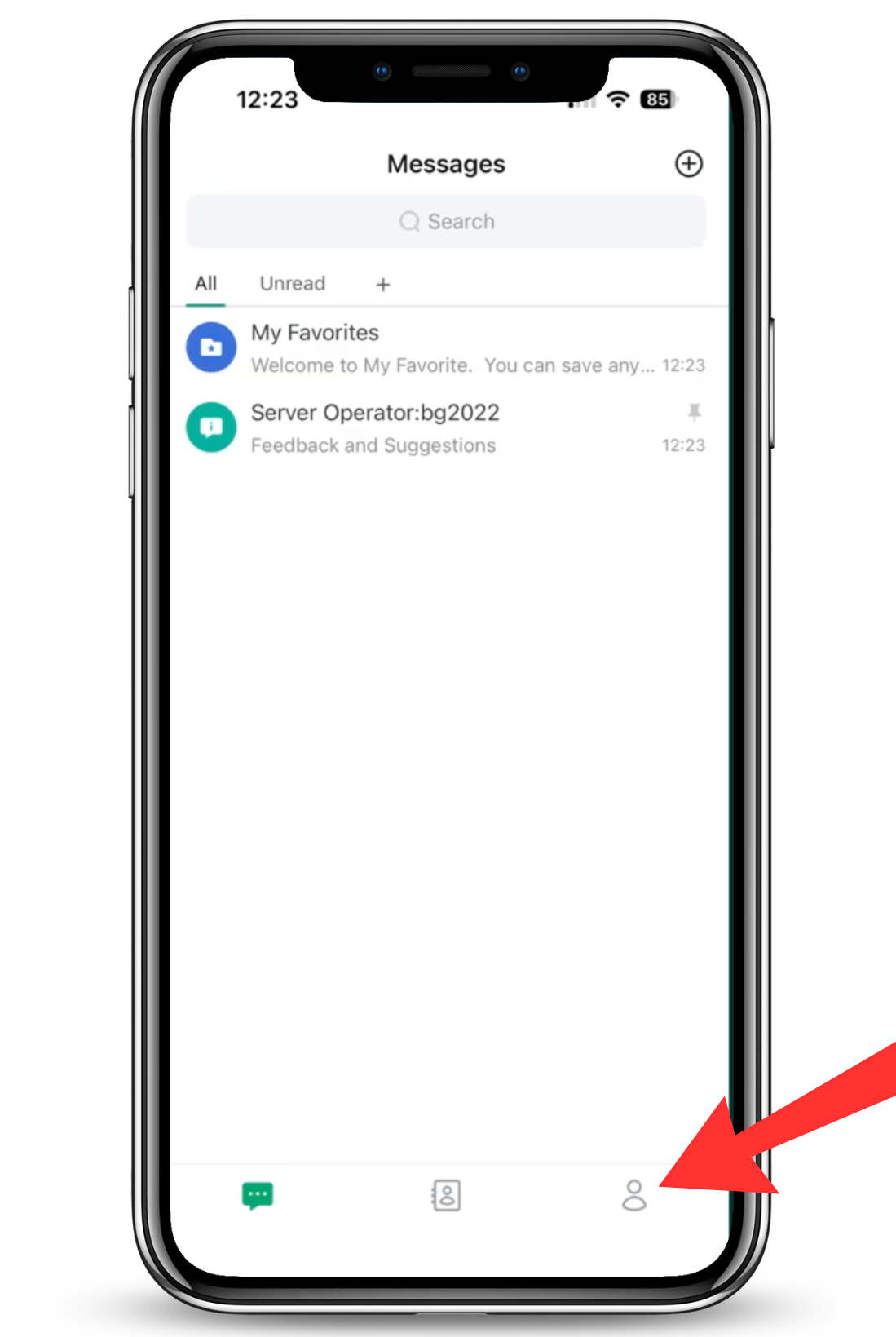
Step 10: (Optional) Update Your Profile
Now that you have created your account, click the person icon in the bottom right of your screen to add a profile photo (avatar) and other profile details.
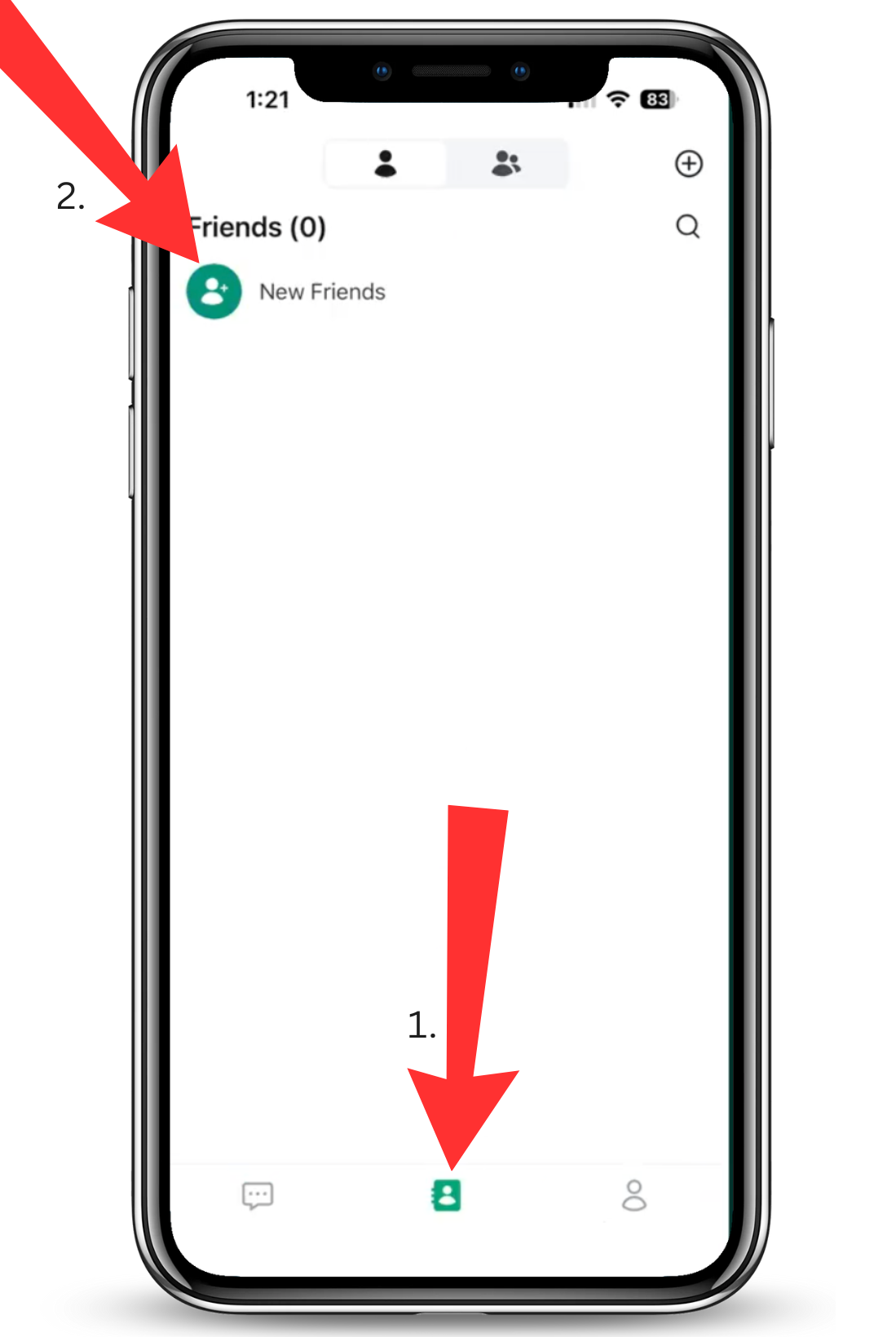
Step 11: Go To Contacts
To gain access to the BG Wealth Sharing groups, you must add 2 contacts.
At the bottom of your screen, click the icon that looks like a book with a person on it.
Then click New Friends
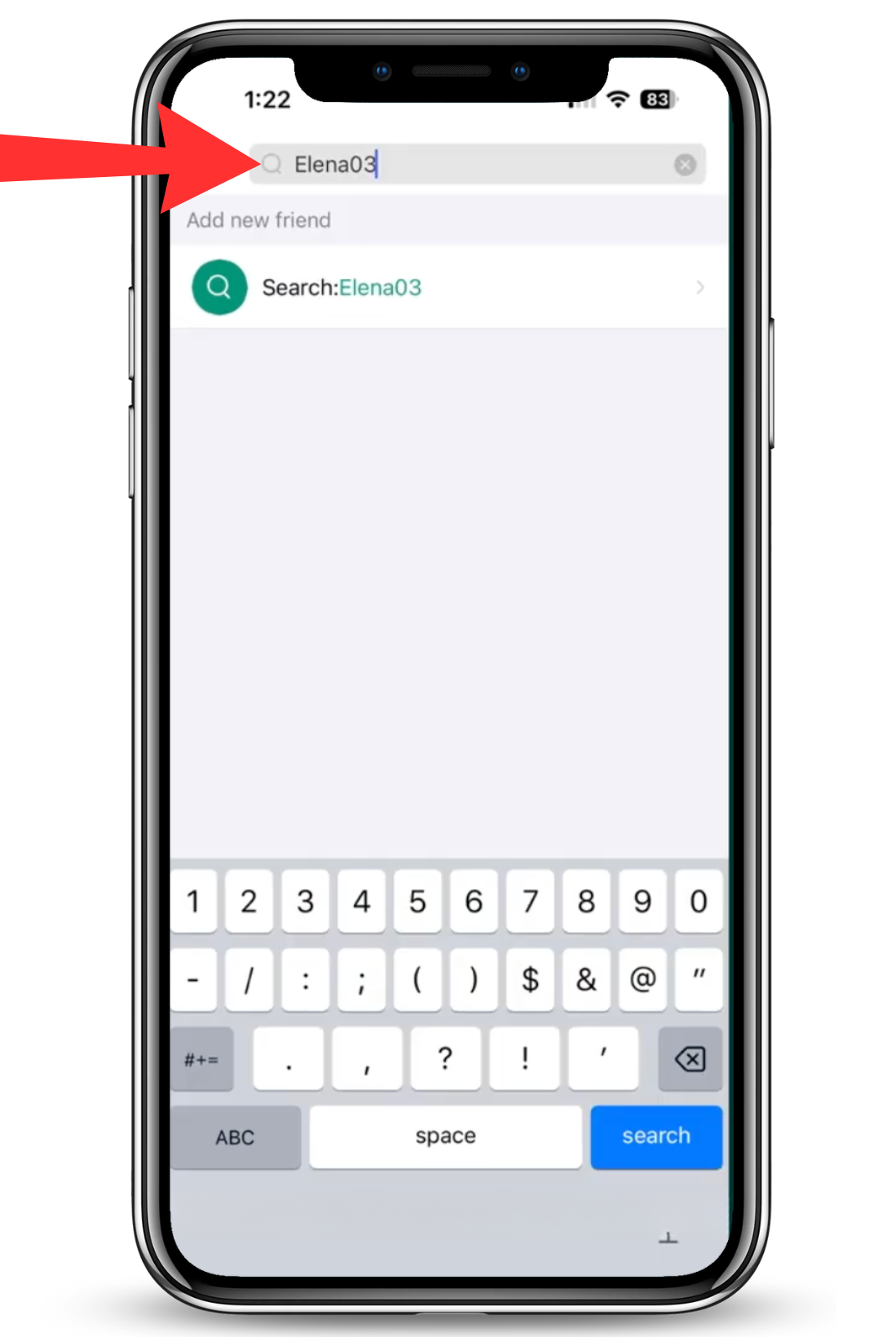
Step 12: Search for Elena03
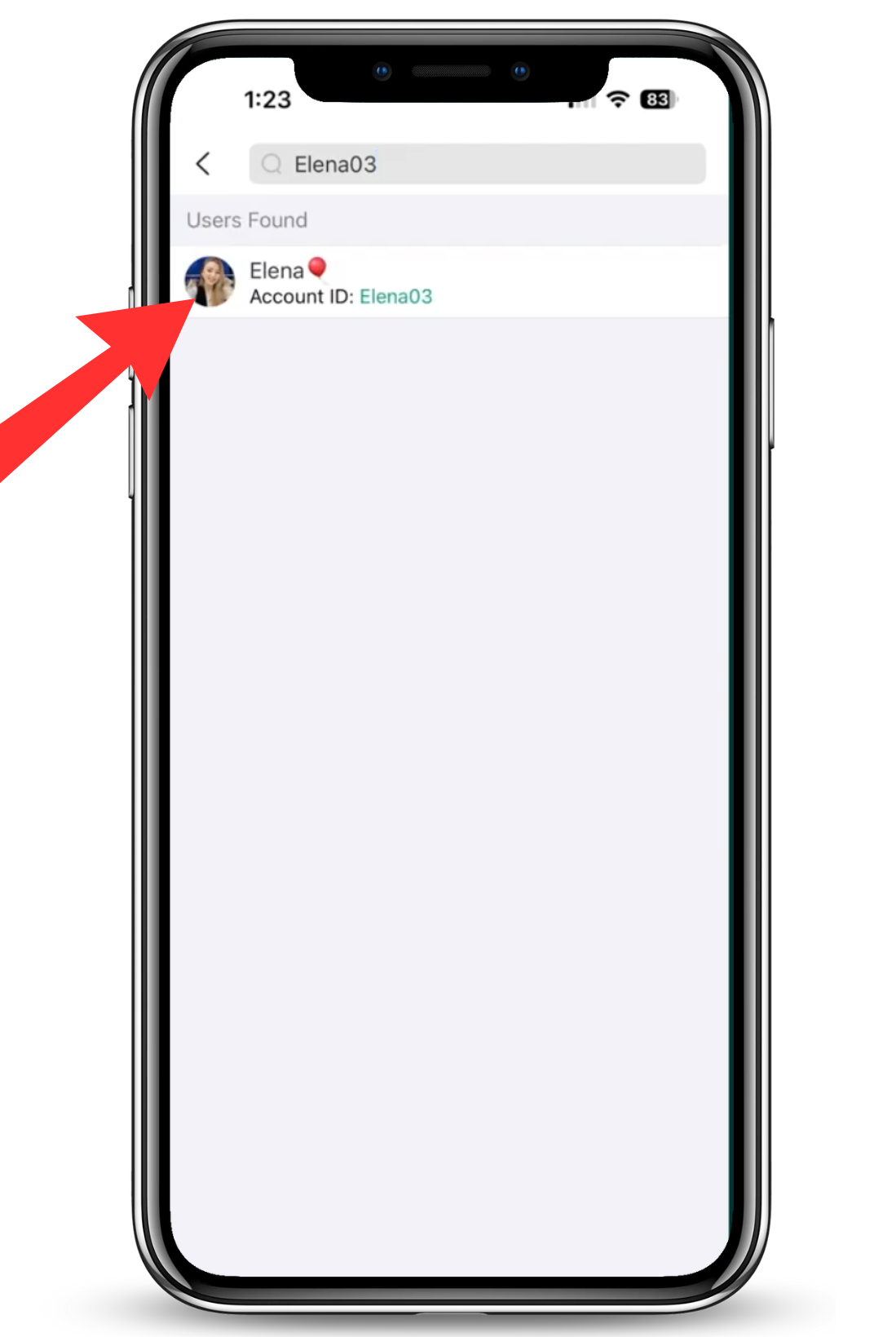
Step 13: Click Elena's Image
Under Users Found you will see Elena with the Account id Elena03. Click her image.
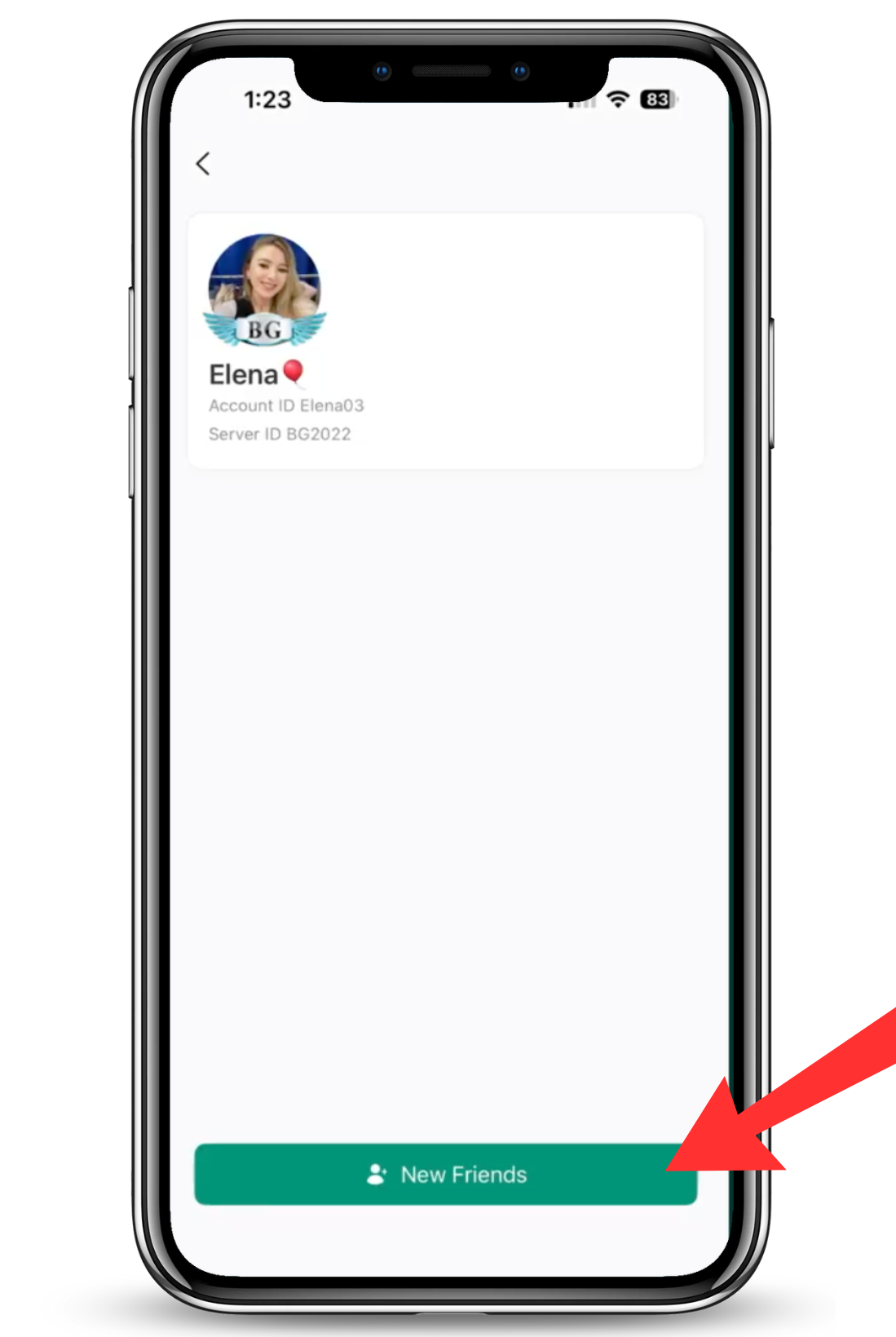
Step 14: Click New Friends
When you see Elena's information, click the green New Friends button.
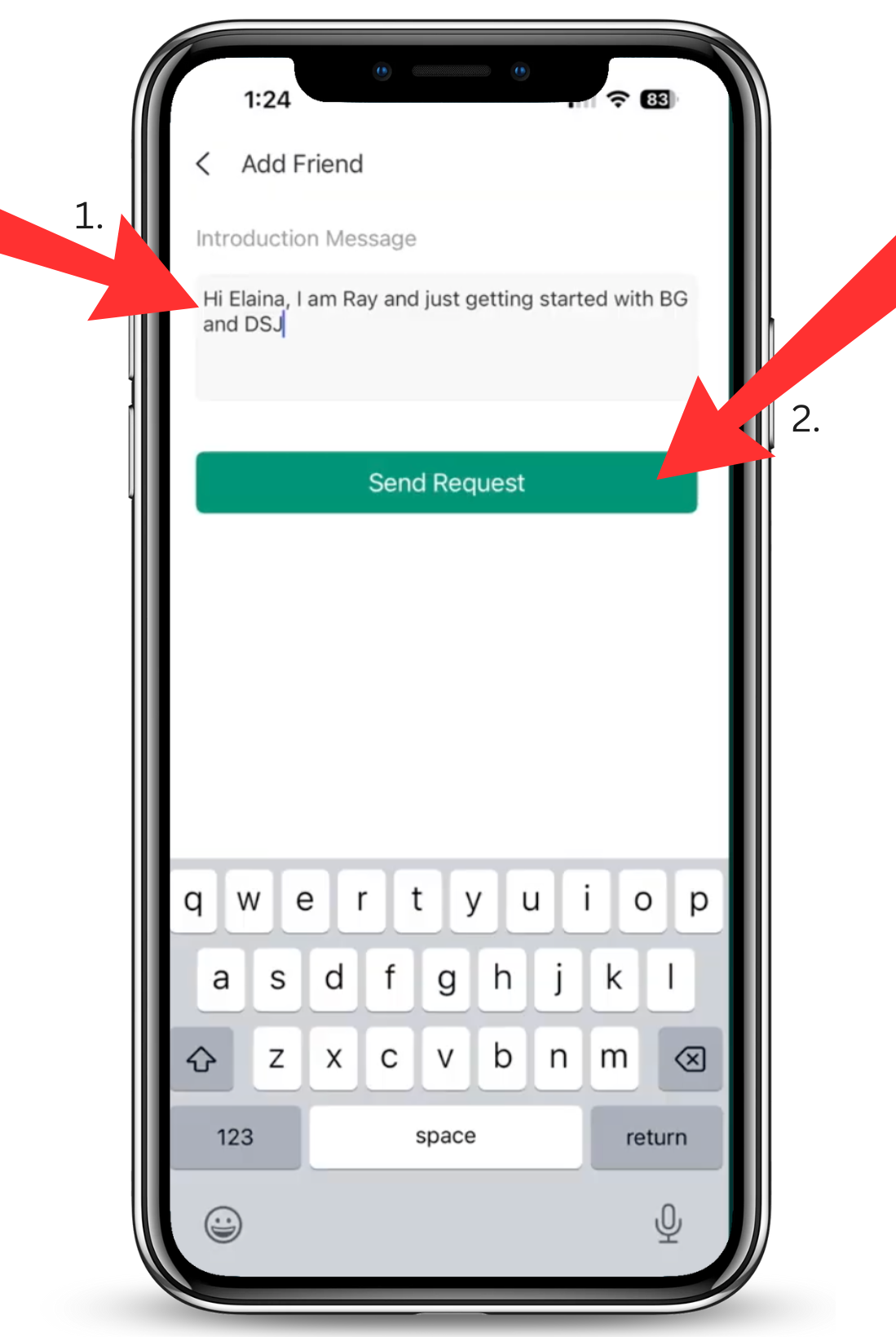
Step 15: Write a Short Message
Under Introduction Message, type:
Hi Elena, I am Your Name and I'm just getting started with BG and DSJ. My referrer's name is
Then click the green Send Request button.
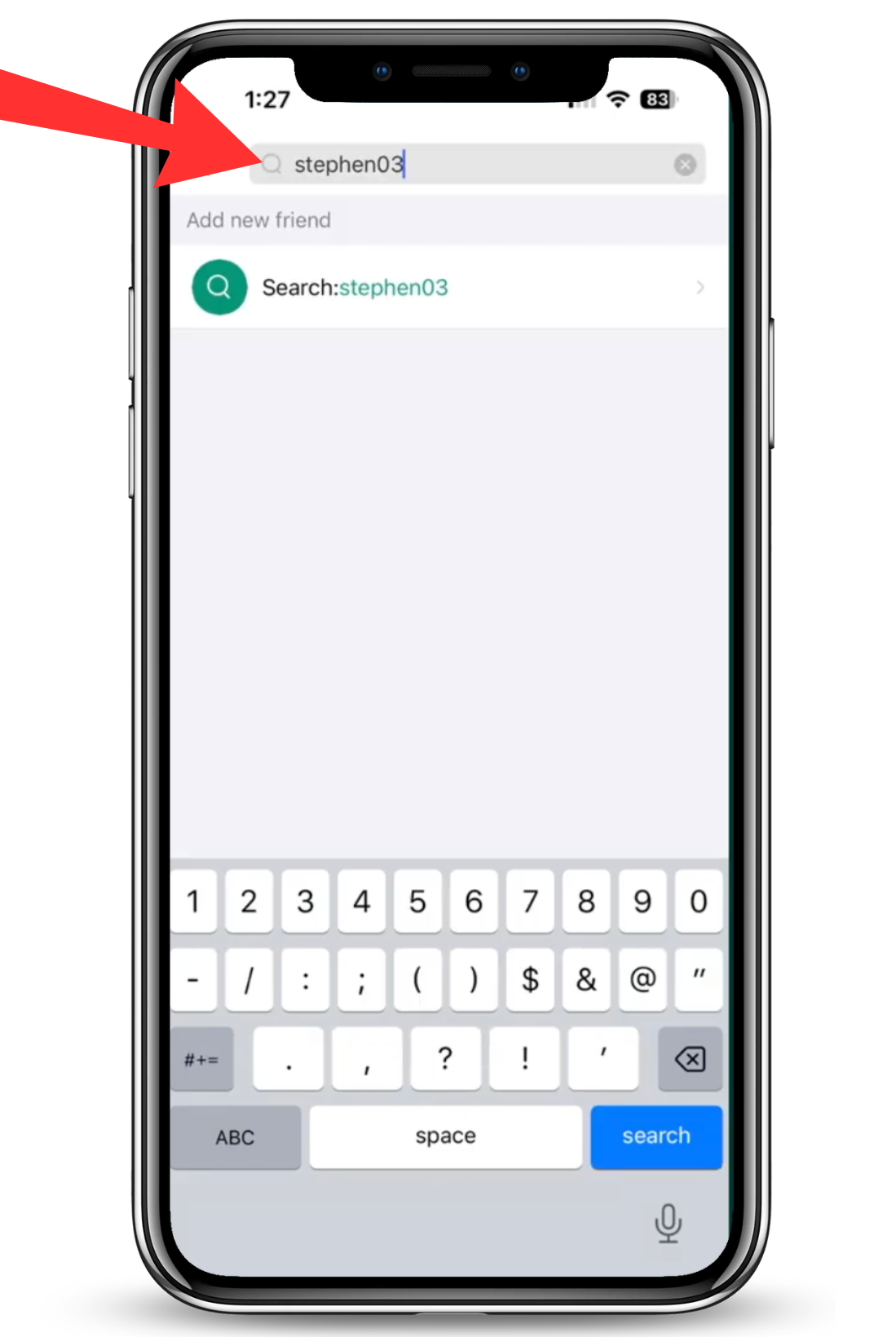
Step 16: Search for stephen03
Now let's do the exact same thing for the next person you need to connect with.
Search for stephen03
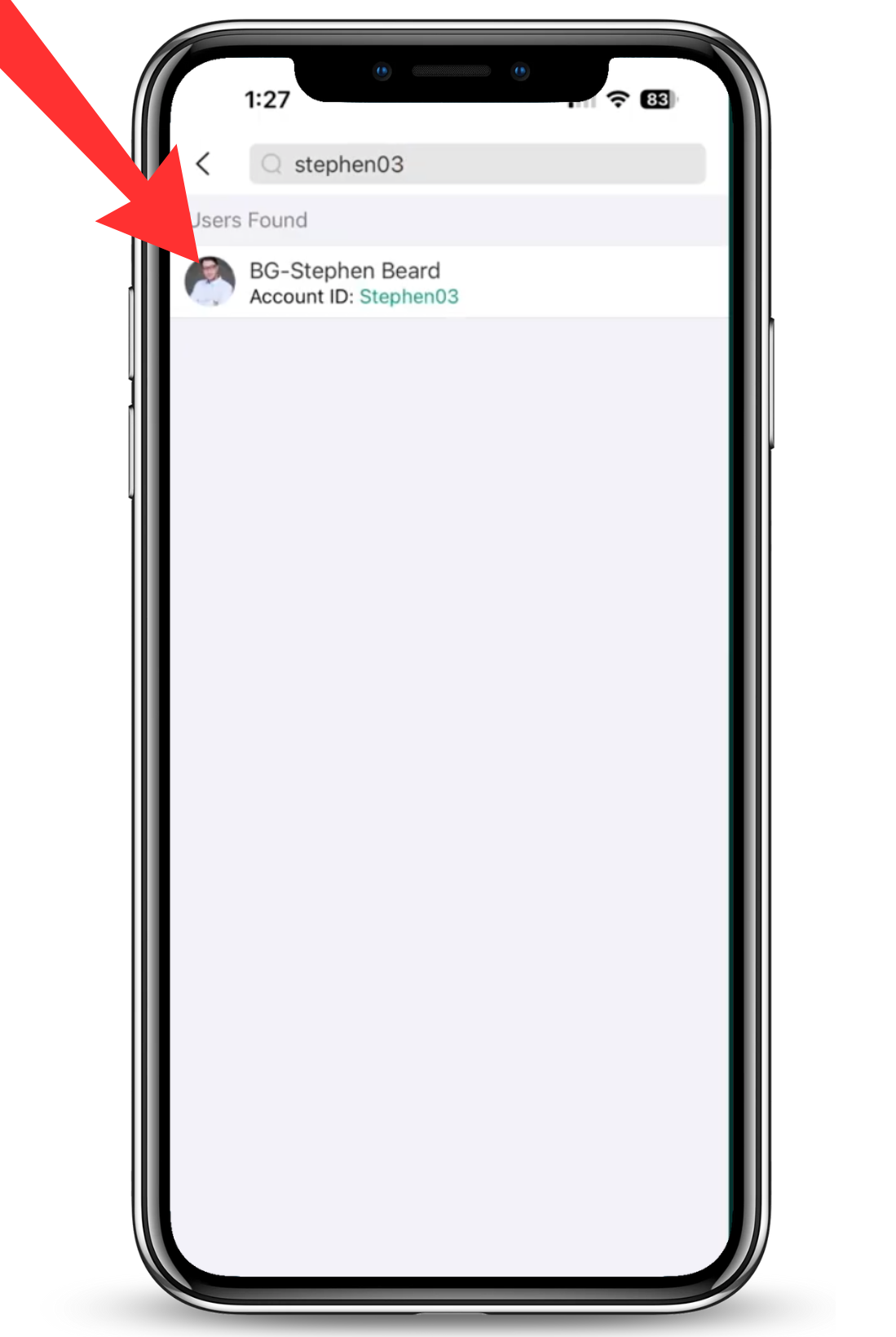
Step 17: Click BG-Stephen Beard's Image
Under Users Found you will see BG-Stephen Beard with the Account id Stephen03. Click his image.
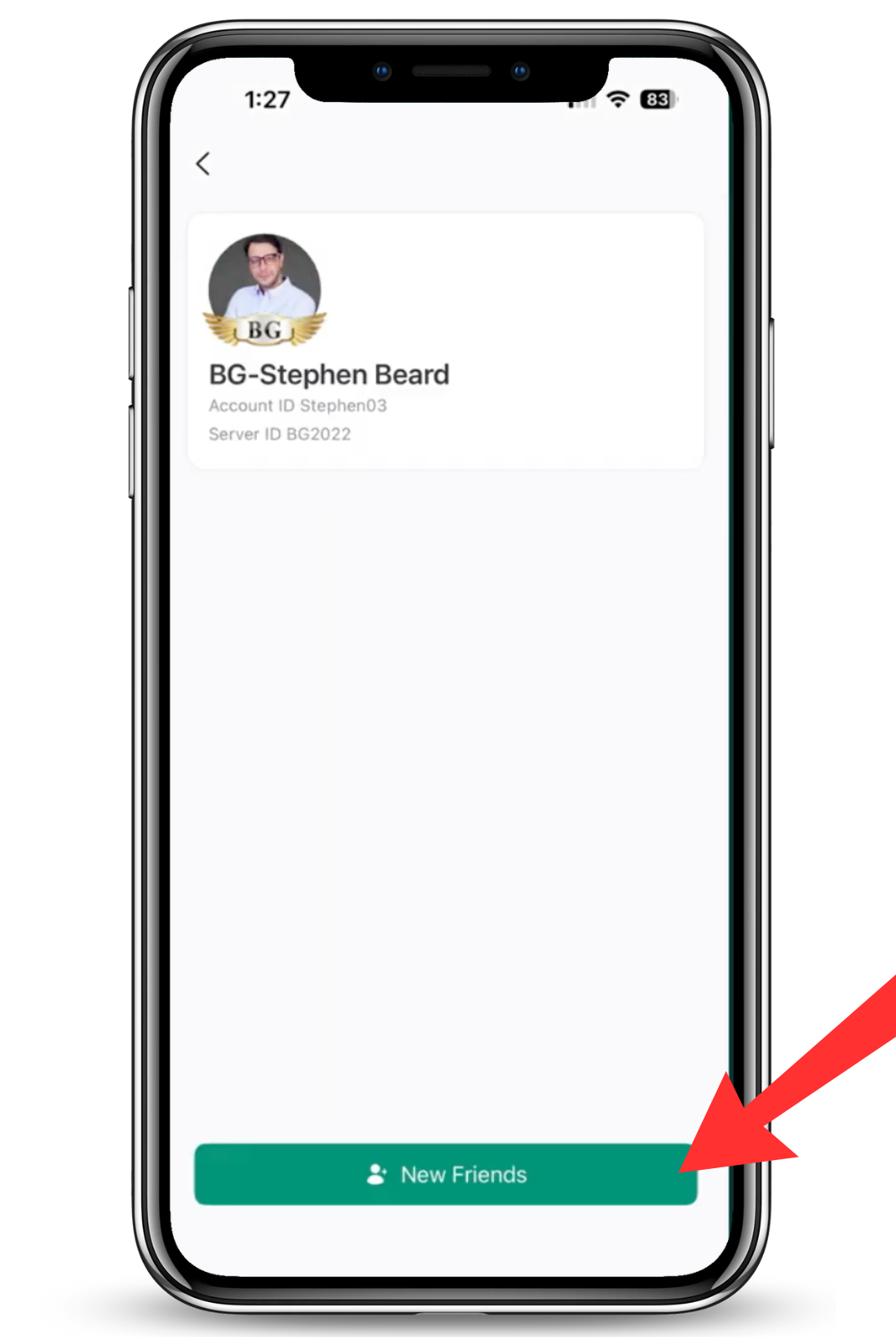
Step 18: Click New Friends
When you see Stephen's information, click the green New Friends button.
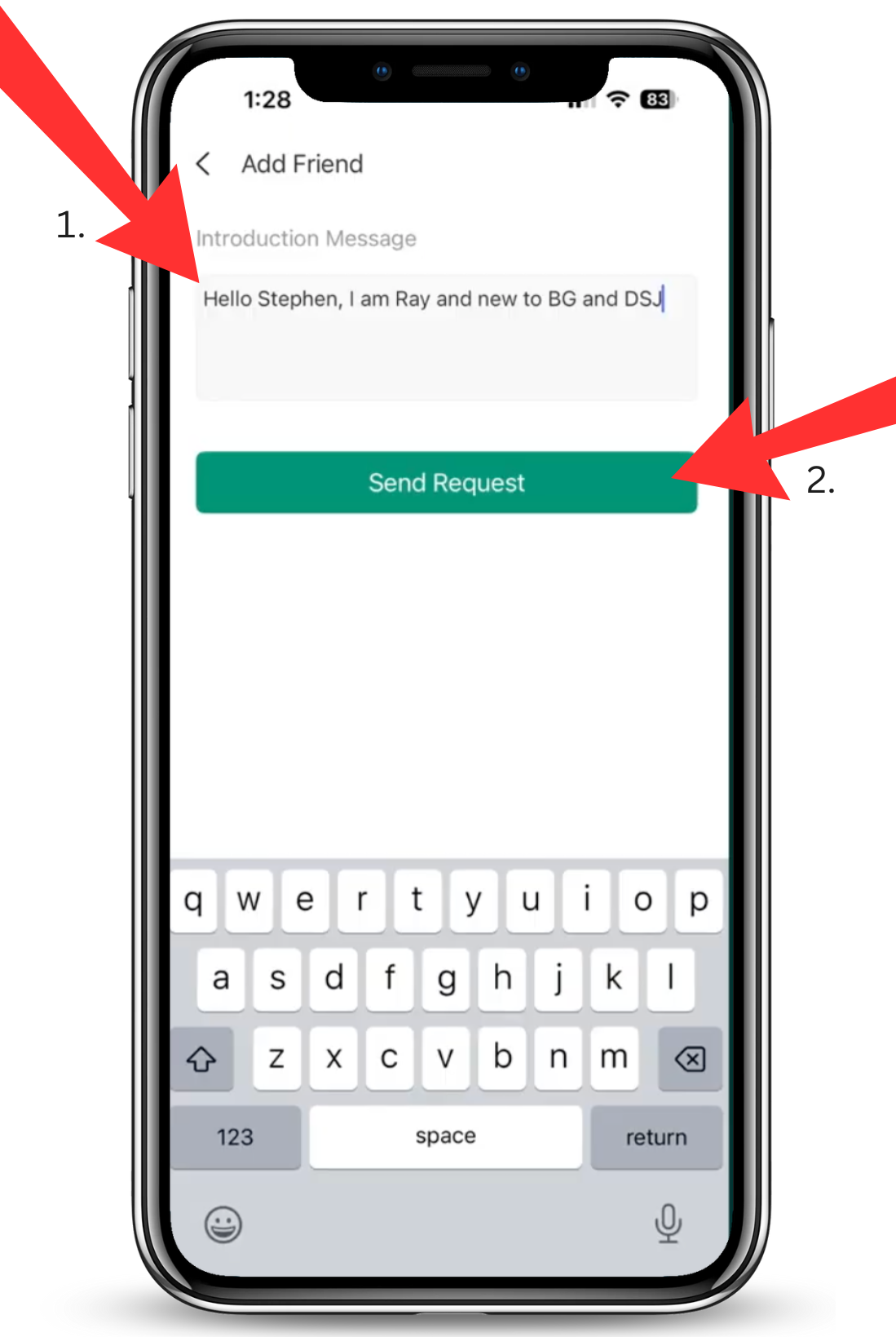
Step 19: Write a Short Message
Under Introduction Message, type:
Hi Stephen, I am Your Name and I'm just getting started with BG and DSJ.
Then click the green Send Request button.
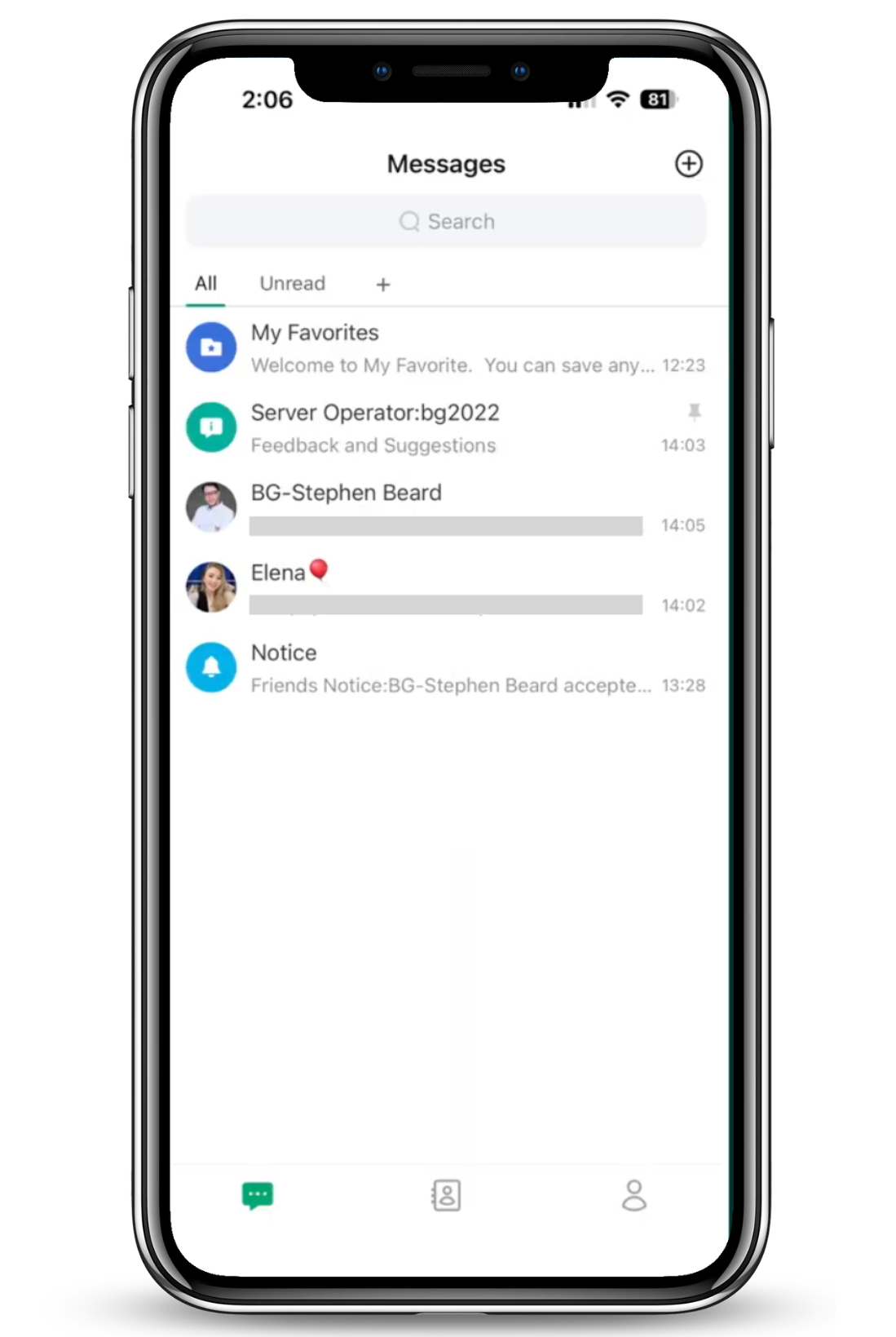
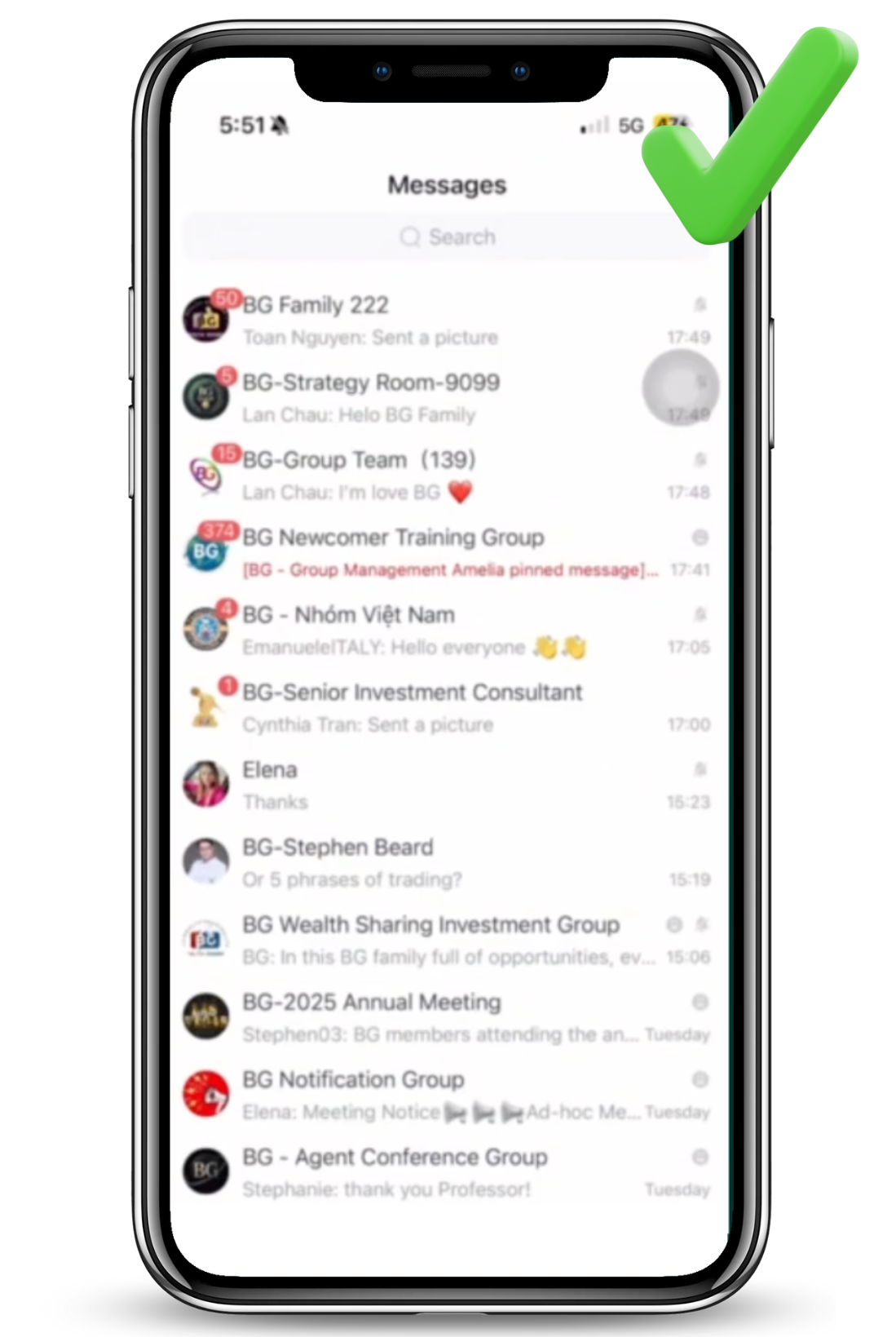
Step 20: Go to Messages
© 2026 SmartMoneyProject.net | Privacy Policy | Terms & Conditions | Refund Policy | Earnings Disclaimer | Get A Website Like This | Login
Please remember that all trading involves risk. You should only invest what you are comfortable with.